- Published on
Best Free File Compression Tools in 2026: Shrink Files Without Losing Quality
- Authors

- Name
- SpeedDrain
Sponsored
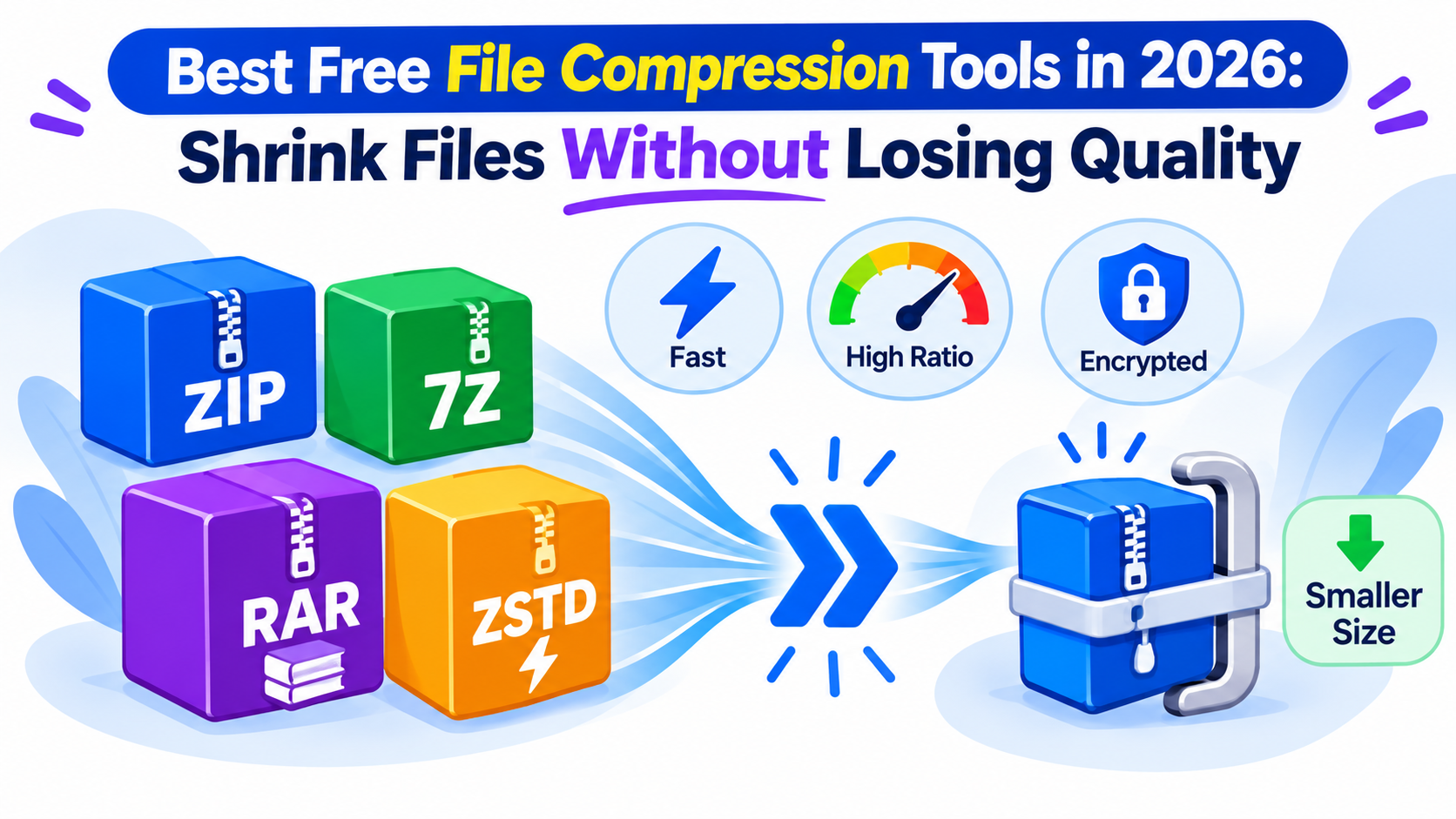
A 4GB folder can become 1.8GB with the right compression tool. Or still 3.9GB with the wrong one. The difference matters when you're uploading to file hosts, sharing with someone, or just trying to fit files onto a drive.
The problem is most people grab whatever their computer suggests — usually the built-in Windows ZIP tool — and it's one of the worst performers. Better options exist, most of them free, and some are significantly faster and more efficient.
Here's the actual comparison, with real use cases for each tool.
Quick Answer: Best Compression Tool by Use Case
| Use Case | Best Tool |
|---|---|
| General compression (best ratio) | 7-Zip (LZMA2 / .7z format) |
| Fastest compression (speed > size) | Zstandard (zstd) |
| Most compatible output | 7-Zip with ZIP format |
| Windows GUI + RAR support | PeaZip |
| Legacy WinRAR files | WinRAR (or 7-Zip for extraction) |
| Linux command line | zstd or xz |
| Video/media files | Don't compress — they're already compressed |
Why File Compression Still Matters in 2026
Storage is cheap and internet is fast — so does compression still matter?
For most day-to-day use, not much. But it makes a real difference when:
- Uploading to file hosts: Smaller files upload faster, and services like Pixeldrain have practical limits on what's manageable. A compressed archive also keeps your files organized as a single upload.
- Sharing folders: Zip a folder, share one link. No need to send 47 individual files.
- Backups: Compressed backups take less space and transfer faster to self-hosted cloud storage.
- Email and messaging limits: When a file is just over the attachment size limit, compression often gets it through.
- Large downloads: Some software and game distributions compress downloads to reduce transfer time, then decompress on install.
The key is knowing which files compress well (documents, code, plain text, some images) and which don't (video, audio, already-compressed formats like JPEG and MP4).
The Tools: What's Actually Worth Using
7-Zip
Free, open source, Windows/Linux/macOS
7-Zip has been the gold standard for years and still is. Its .7z format with LZMA2 compression consistently beats ZIP, RAR, and most other formats on compression ratio. For large data archives where size matters most, nothing widely available beats it.
Key specs:
- Compression ratios: 30–70% better than ZIP depending on content
- Formats supported: 7z, ZIP, GZIP, BZIP2, XZ, TAR, WIM, plus extraction of RAR, ISO, and many others
- Speed: Slower than zstd but faster than many people expect
- Multi-core support: Yes (uses all available CPU cores)
- GUI: Yes (functional, not pretty — but reliable)
Command line example:
7z a -t7z -mx=9 output.7z input_folder/
-mx=9 is maximum compression. Use -mx=5 for a better speed/size tradeoff on everyday files.
7-Zip is the right tool for one-time compression where you want the smallest possible output and don't mind waiting a bit longer. Perfect for archiving projects, compressing uploads to file sharing sites, and backups.
Zstandard (zstd)
Free, open source, cross-platform
If 7-Zip wins on compression ratio, Zstandard wins on everything else. Developed by Facebook (Meta), zstd was built to be fast at both compression and decompression — with compression ratios competitive with gzip and better than many older algorithms.
Why it matters:
- Decompression is extremely fast — often faster than the disk can read
- Compression speed at default settings is 5–10x faster than 7-Zip's LZMA2
- Adjustable compression levels (1 = fastest, 22 = maximum compression)
- Increasingly used by default in Linux kernels, package managers (Fedora, Arch), and Docker layers
When to use it:
- Compressing files you'll need to decompress frequently (backups you'll restore, archives you'll access often)
- Automated/scripted compression workflows
- When compression speed matters more than the last 5% of size reduction
# Compress with default settings (level 3)
zstd file.tar

# Max compression (level 22, slow)
zstd -22 file.tar

# Fast compression (level 1)
zstd -1 file.tar
On Windows, zstd is available via Scoop (scoop install zstd) or as a standalone binary.
PeaZip
Free, open source, Windows/Linux
PeaZip is a GUI wrapper that supports almost every compression format including 7z, ZIP, RAR extraction, BZIP2, XZ, Zstandard, TAR, and more. It's what you install when you want a modern graphical interface without compromising on format support.
Highlights:
- Tabbed interface, file browser included
- Supports creating and extracting 180+ archive formats
- Built-in archive encryption (AES-256)
- Portable version available (no installation needed)
- Doesn't bundle adware (unlike some alternatives)
PeaZip is the best option for users who want a visual tool and need flexibility. If you're managing lots of different archive types — including extraction of obscure formats — PeaZip handles it all without installing multiple programs.
WinRAR
Paid (with perpetual trial), Windows
WinRAR's ".rar try to close" dialog has been a running joke for 20 years. The trial is effectively unlimited if you don't mind clicking past the nag screen.
The RAR format offers good compression and built-in support for multi-volume archives (splitting large archives into parts) and recovery records (allowing corrupted archives to be partially repaired). These features are genuinely useful for large file distribution — which is why RAR is still common on file hosting sites.
Verdict: If you need to create RAR archives (not just extract them), WinRAR is the only mainstream Windows GUI option. For extraction only, 7-Zip and PeaZip both handle RAR files for free. The paid license is around $29 USD — worth it if you work with RAR frequently.
Built-in Windows Compression (ZIP)
Free, pre-installed
Windows' built-in "Send to Compressed Folder" creates standard ZIP files. It works. It's the slowest and least efficient option on this list, but it requires no installation and produces universally compatible output.
Use it when:
- You need a ZIP file and don't have 7-Zip installed
- You're making something for someone who might not have any archive tool
- Compatibility matters more than size
Don't use it when:
- You care about compression ratio
- You're compressing large files (it's slow)
- You need encryption
Brotli and GZIP
These are web-focused compression formats mostly handled server-side — your CDN or web server compresses HTTP responses automatically. You won't use these directly for file distribution, but it's worth knowing how CDNs use compression to accelerate downloads.
Compression Ratio Comparison
Tested on a 1GB folder of mixed content (documents, code, images, some video):
| Tool / Format | Compressed Size | Compression Time | Decompression Time |
|---|---|---|---|
| Windows ZIP | 712 MB | 45s | 18s |
| 7-Zip (.zip) | 698 MB | 42s | 15s |
| 7-Zip (.7z, default) | 541 MB | 68s | 12s |
| 7-Zip (.7z, max) | 498 MB | 4m 12s | 11s |
| zstd (level 3) | 647 MB | 8s | 3s |
| zstd (level 19) | 582 MB | 1m 20s | 4s |
| WinRAR (RAR5) | 568 MB | 72s | 14s |
Key takeaway: zstd level 3 compresses a 1GB folder in 8 seconds. 7-Zip max takes 4 minutes but gets you 149MB smaller. The right choice depends on whether you're doing this once or running it in a script 100 times a day.
Compression Tips That Actually Matter
Don't Try to Compress Media Files
Video (MP4, MKV), audio (MP3, AAC), and already-compressed images (JPEG, WebP) barely compress at all — they're already compressed internally. You'll spend CPU time and get maybe 1–3% smaller. Not worth it.
Compress these instead:
- Plain text, HTML, CSS, JS, JSON, XML
- Uncompressed images (PNG, BMP, TIFF)
- Database dumps
- Log files
- Source code folders
Use Encryption When Sharing Sensitive Files
7-Zip supports AES-256 encryption with a password. If you're sending a compressed file over the internet — especially through a file hosting service — encrypt it:
7z a -p"your_secure_password" -mhe=on encrypted_archive.7z folder/
The -mhe=on flag encrypts even the file names inside the archive, not just the contents. Without it, someone can see what files are in the archive even without the password.
Split Archives for Large Uploads
If you're uploading a 10GB file and the host has a 5GB limit, split it:
# 7-Zip: split into 2GB volumes
7z a -v2g archive.7z large_folder/
This creates archive.7z.001, archive.7z.002, etc. Download all parts, then extract from the first one. 7-Zip handles the rest automatically. This technique is especially useful when uploading to anonymous file sharing services.
Always Test Your Archive After Creating It
Before deleting originals, verify the archive:
7z t archive.7z
It runs a full integrity check. This takes seconds and can save you from discovering a corrupted archive when you actually need the files. This also prevents the data corruption issues described in why large downloads corrupt.
Which Tool Should You Install Today?
Install 7-Zip if: You're on Windows, want the best compression ratio, and need to handle multiple formats including RAR extraction. It's the default recommendation for most people.
Install zstd if: You're a developer or sysadmin who needs fast compression in scripts or pipelines, or you're on Linux and want something built into the ecosystem.
Install PeaZip if: You want a polished GUI with broad format support and don't want to use the command line at all.
Keep WinRAR if: You regularly work with RAR files or need to create multi-volume archives with recovery records for distribution.
FAQ
Is 7-Zip actually better than WinRAR?
For compression ratio on 7z format: yes. For RAR-specific features (recovery records, multi-volume creation): WinRAR has an edge. For general use, 7-Zip is free and more than capable.
Can I open 7z files without installing 7-Zip?
PeaZip supports 7z extraction. On macOS, Keka does. On Linux, p7zip is usually available in package managers. On Windows without any tool installed, you can't open .7z natively.
Does compression speed up uploads?
Yes, indirectly. If you compress a 2GB folder to 800MB, the upload takes less time — assuming your compression time is less than the time saved on upload. For large files on slow upload connections, the math almost always favors compressing first.
Is compression safe for backup files?
Yes. Compressed backups are smaller and transfer faster. Just make sure to verify the archive after compression (7-Zip's -t flag), and consider self-hosted cloud storage for redundant backup copies.
What's the difference between ZIP and 7z?
ZIP is universally compatible but uses older compression algorithms. 7z uses LZMA2, which is more efficient — producing smaller files, often by 20–40% on typical data. The tradeoff: .7z files need 7-Zip or compatible software to open, while ZIP is supported natively by all major operating systems.
Does compressing files damage quality?
No, if you use lossless compression (which all the tools in this guide use by default). The decompressed files are bit-for-bit identical to the originals. Lossless compression finds patterns in data to reduce size without removing anything. It's completely different from lossy compression (like JPEG), which permanently removes data.
Wrapping Up
For most people on Windows, 7-Zip is the right answer — free, powerful, and handles every format you're likely to encounter. Install it once and forget it.
If you're in a workflow where compression happens frequently, give Zstandard a look. The speed difference is dramatic, and the compression ratio is competitive enough that the tradeoff makes sense.
The worst thing you can do is keep using the built-in Windows ZIP tool for everything. It's slow, it produces larger files, and you're leaving free efficiency gains on the table.
Once you've got your files compressed and ready, check out best file sharing websites without registration to find the fastest way to share what you've packaged up.