- Published on
Plexo Download Manager: How to Combine Multiple Internet Connections for Faster Downloads
- Authors

- Name
- SpeedDrain
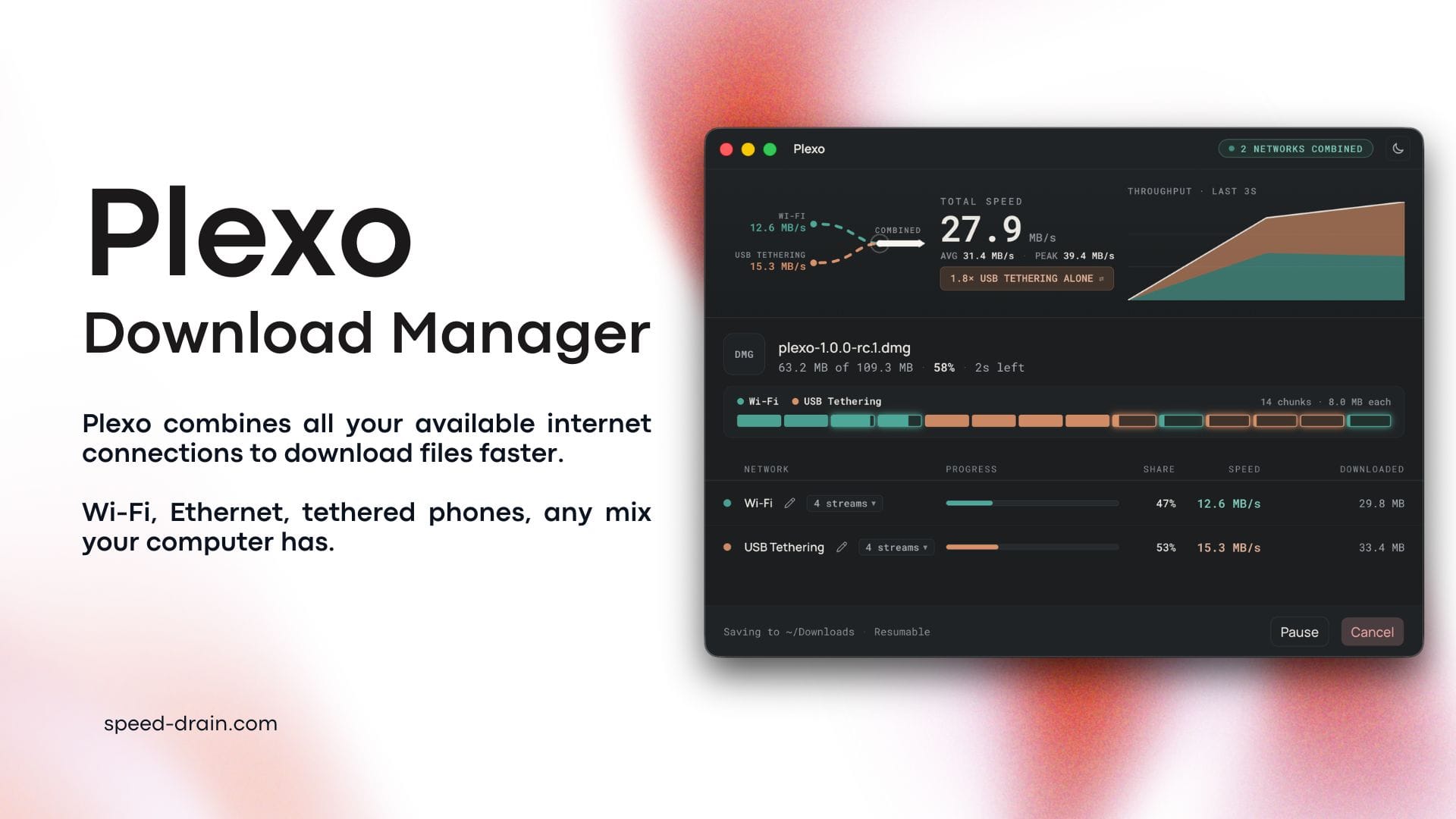
You start an 80 GB game download. The progress bar crawls to 14%, and the ETA keeps flipping between "5 hours" and "7 hours." Meanwhile, your phone is sitting next to the keyboard with a perfectly good 5G connection doing absolutely nothing.
That's the odd thing about slow downloads. The problem is rarely that you don't have enough internet in total. Your computer pushes the whole file through one pipe, and the server on the other end might not even fill that pipe.
This guide shows you how to download files faster in two stages. First, by using multiple connections to the same server, which is the classic download manager trick. Then by combining separate internet connections (Wi-Fi, Ethernet, USB tethering) so a single file is pulled through all of them at once. You'll see what actually works, where the limits are, and a full walkthrough using Plexo, an open-source tool built for exactly this job.
Quick Answer: How to Download Files Faster
To download files faster, use a download manager that splits each file into chunks and fetches them over several connections at the same time. If you also have a second, independent internet line (for example home Wi-Fi plus a phone on USB tethering), a multi-link tool like Plexo can pull chunks through both lines and merge them into one file.
Here's the short version:
- Find the bottleneck first. Is it your line, the server, or your Wi-Fi? A quick check saves a lot of guessing (more on that below).
- Stop relying on the browser's default download. A multi-connection download manager usually beats it on big files.
- Add a second line if you have one. Wi-Fi plus phone tethering is the easiest combo.
- Don't max out the connection count. More streams isn't always faster, and some servers will refuse you.
Heads-up: two connections only add up when they come from different internet lines. Wi-Fi and Ethernet from the same router share one line, so combining them won't make downloads faster.
Why Your Downloads Are Slower Than Your Internet Plan
Your ISP sells you megabits per second (Mbps). Your download bar shows megabytes per second (MB/s). Divide by 8: a 100 Mbps plan tops out around 12.5 MB/s. A surprising number of "my downloads are slow" complaints are just this unit mix-up.
But even when the math checks out, real downloads often fall short. The usual suspects:
- Per-connection throttling. Many servers cap the speed of each individual connection, no matter how fat your line is.
- Distance and latency. A single connection over a long, high-latency route rarely fills a fast line.
- Wi-Fi trouble. Interference and packet loss quietly drag speeds down.
- A busy or faraway server. Popular hosts get crowded, and not every file sits on a nearby CDN. If that sounds unfamiliar, here's how a CDN makes downloads faster.
- Your own device. A slow disk, antivirus scanning, or a VPN can all cap the speed before the network does.
Want the deeper version? Our breakdown of download speed vs internet speed and why some file downloads are slower than others cover it properly.
A quick sanity check: run a speed test, then download a big file from a fast, well-known host. If the speed test says 200 Mbps but the download stalls at 3 MB/s, the limit is probably per-connection or server-side. That's exactly the situation multi-connection downloading fixes.
How Multi-Connection Downloading Works
By default, a browser usually grabs a file over one connection. A multi-connection download manager does something smarter. It asks the server for the file in pieces using HTTP range requests:
GET /big-file.iso HTTP/1.1
Range: bytes=0-8388607
The server replies with only those bytes. The manager fires off many requests like this at once, each for a different slice, then stitches the slices into the finished file.
You'll see this idea under different names: parallel download, multi-threaded download, segmented downloading. They all mean the same thing. One file, several streams running side by side.
There's a nice side effect too. Because the manager tracks which pieces have arrived, an interrupted download can resume instead of starting over. That only works if the server supports range requests, and good managers also check that the file hasn't changed since you started (usually by comparing the ETag or Last-Modified header).
When multi-connection downloading helps (and when it doesn't)
| Situation | Does it help? | Why |
|---|---|---|
| Server throttles each connection | Yes, a lot | Every connection gets its own allowance |
| Long, high-latency or lossy route | Usually | More streams keep the pipe full |
| Your line is already maxed out by one stream | No | Nothing left to fill |
| Server doesn't support range requests | No | The file can't be split |
| Server limits connections per user | Limited | Extra connections get refused (errors like 429 or 503) |
That last row matters. If a host enforces download limits on purpose, no tool will politely get around them. Pixeldrain is a good example, and its free vs premium limits are worth understanding before you blame your connection.
Combining Multiple Internet Connections: The Next Level
Multi-connection downloading runs several streams over one internet line. Combining internet connections goes a step further: it runs streams over different lines to download a single file.
Think of it as opening a second checkout lane. If one lane is capped, the other keeps moving.
The one rule that actually matters
Each connection needs its own route to the internet.
Home Wi-Fi plus a phone on mobile data? Two lines. Ethernet from one ISP plus Wi-Fi from another? Two lines. Ethernet plus Wi-Fi from the same router? One line, shown twice.
Plexo's own documentation makes the same point. If two connections have addresses on the same local network (both 192.168.1.x, say), your computer sends everything through just one of them. Plexo even warns you when two selected connections look like that. If you're curious how a wired link behaves compared with wireless on its own, our Ethernet vs Wi-Fi download speed test has the numbers.
Setups that work, and setups that don't
| Setup | Adds speed? |
|---|---|
| Home Wi-Fi + phone via USB tethering | Yes, two separate lines |
| Ethernet (ISP A) + Wi-Fi (ISP B) | Yes |
| Wired line + 4G/5G hotspot or dongle | Yes |
| Ethernet + Wi-Fi from the same router | No, still one line |
| 2.4 GHz + 5 GHz from the same router | No, still one line |
Ways to combine connections
There's more than one way to do it, and each has trade-offs:
| Method | How it works | Best for | The catch |
|---|---|---|---|
| Multi-link download manager (Plexo, HypoMux) | Splits one download across your networks | Big file downloads | Only speeds up downloads inside that app; the server must support range requests |
| Bonding service (Speedify) | Merges connections for all your traffic | Calls, streaming, general use | Commercial service, and your traffic goes through its servers |
| Router with dual WAN or load balancing | Spreads separate connections across lines | Homes with many devices | One stream usually stays on one line |
| Phone-level features (Samsung's Download Booster on some Galaxy phones) | Uses Wi-Fi and mobile data together | Large app and file downloads on the phone | Device-specific, availability varies |
For pure download speed on a computer, a multi-link download manager is the simplest option. It doesn't change how your whole network behaves. It just makes one app smarter.
A rough example
Say your home line gives you 60 Mbps (about 7.5 MB/s) and your phone's tethered connection gives you 40 Mbps (about 5 MB/s). In a perfect world, a combined download would land near 100 Mbps, or roughly 12.5 MB/s. Real life takes a cut for overhead, signal quality and the server's own limits, so expect less than the ideal number. Still, the jump from one line to two can be big.
Step-by-Step: Combine Wi-Fi and Phone Data with Plexo
Plexo is a free, open-source (MIT license) download manager for Windows, macOS and Linux. It splits a single download across every network your computer can see (Wi-Fi, Ethernet, a tethered phone) and merges the result back into one verified file. The source lives on GitHub.
Here's how to set it up.
Line up two independent connections. Connect your computer to home Wi-Fi, then plug in your phone and turn on USB tethering. A cable usually gives a steadier link than a hotspot, because there's no extra wireless hop between phone and computer. Each network needs a working IPv4 connection and a route to the download server.
Install Plexo from the official source. Use the project site or its GitHub releases page, nothing else. At the time of writing the app isn't code-signed yet, so your system may complain on first launch. On a Mac, you might see a "damaged" message. The project's fix is one Terminal command:
xattr -dr com.apple.quarantine /Applications/Plexo.appOn Windows, you may see a "Windows protected your PC" screen. The project's download page walks through the first-launch steps for each system. Since the code is open, you can also inspect what you're running before you trust it.
Mac with an Android phone? Install a helper first. macOS doesn't recognize Android USB tethering out of the box. Plexo's page points to a free helper app called TetherKit for this.
Windows quirk: check the connection policy. On some setups, Windows tries to minimize simultaneous connections and quietly drops one of your networks. In the Group Policy editor, the setting lives under Computer Configuration, Administrative Templates, Network, Windows Connection Manager. Set "Minimize the number of simultaneous connections to the Internet or a Windows domain" to Disabled. Plexo's download page has a full walkthrough.
Pick your networks and paste the link. Plexo shows a link picker with ping and stream controls. Tick Wi-Fi and your tethered phone, paste the download URL, and start.
Watch it work. You'll see per-network speed and a progress grid color-coded by which network fetched each chunk. It's oddly satisfying to watch.
The project's own demo shows a 109.3 MB file finishing in 8 seconds, with a peak of 39.4 MB/s split across Wi-Fi and USB tethering. Treat that as a best-case demo. Your results depend on both lines and on the server.
What Plexo does under the hood
Knowing how it works helps you trust it, and helps you troubleshoot.
- It checks range support first. Before a multi-connection download, Plexo sends a tiny 1-byte ranged request to see if the server can serve pieces.
- It uses a work-stealing queue. The file is cut into chunks. A faster network finishes chunks sooner and grabs the next ones, while a slower network pulls fewer. You never set a manual split.
- It adds streams only when they help. Each network starts with a small number of streams, and Plexo adds more only while extra streams actually add speed. If a server refuses some connections, the refused ones close.
- Networks can come and go. Unplug your phone mid-download and the transfer carries on over Wi-Fi. Plug it back in and add it again.
- Pause and resume are validated. Before continuing a paused download, Plexo checks the server's ETag and Last-Modified values against what it recorded at the start.
- No giant copy at the end. It writes into a .plexo file in your chosen folder and renames it when finished, so you need roughly one file's worth of free space.
Plexo pros and cons
Pros
- Free and open source
- Works on Windows, macOS and Linux
- Shows per-network speed, so you can see what each line contributes
- Resumes interrupted downloads and survives networks dropping out
- Adapts stream counts instead of making you guess
Cons
- A young project, so expect rough edges and check the releases page for the current version
- Not code-signed yet, which means an extra step on first launch
- Only helps when your connections are truly separate lines
- Can't beat a server that won't split files or limits connections
- Tethered data counts against your mobile plan
Watch your mobile data
This one bites people. If you tether your phone, that traffic comes out of your mobile plan. A 50 GB game download can eat an entire month's allowance in one evening. Check your plan, and some carriers also throttle or restrict tethering, so read the terms. For smaller files, you can leave the phone out and just use a multi-connection manager on your main line.
Best Download Managers Compared
Plexo isn't the only tool, and it's not always the right one. If you only have one internet line, a regular multi-connection manager is plenty.
| Tool | Platforms | Approach | Best for |
|---|---|---|---|
| Browser built-in | All | Usually one stream per file | Small, everyday files |
| AB Download Manager | Windows, Linux, macOS | Open source, multi-connection, browser integration, scheduling, speed limits | Fast everyday downloading |
| aria2 | Cross-platform, command line | Lightweight, scriptable, multi-connection | Power users and servers |
| Internet Download Manager (IDM) | Windows | Commercial multi-threaded accelerator with browser integration | Windows users who want paid polish |
| Plexo | Windows, macOS, Linux | Splits one download across multiple networks | Big files with two independent lines |
| HypoMux | Windows | Aggregates bandwidth across multiple network adapters | Windows tinkerers |
| Speedify | Desktop and mobile | Commercial bonding service for all traffic | Calls, streaming, general use |
We rank these in more depth in our best download manager of 2026 roundup. If you like the command line, the aria2 complete guide is a great next read.
Which one fits you?
- Students and researchers: a simple multi-connection manager with scheduling handles big datasets and lecture archives. Moving large files between your own machines? Self-hosted cloud storage can sidestep third-party limits entirely.
- Developers: aria2 fits scripts and servers, and our list of web tools for developers has more helpers.
- Gamers: huge game files are where combining Wi-Fi and tethering pays off most, as long as your mobile data can take it.
- Content creators: footage, project files and asset packs are big, so a manager with resume support saves you from restarting after a dropped connection.
9 Practical Tips to Speed Up Downloads
These work with or without a second connection.
- Use a wired connection as your main line. Wi-Fi is fine, but Ethernet is steadier. See the Ethernet vs Wi-Fi test.
- Try a faster DNS server. It won't raise your top speed, but it can make links resolve quicker. Our guide to the best DNS servers for faster downloads shows what to pick.
- Tune your browser. A few settings change how downloads behave, and we cover them in best browser settings for faster downloads. If you're still choosing a browser, the web browser comparison helps.
- Pick the nearest mirror. If a site offers regional mirrors, choose the closest one.
- Keep stream counts sensible. Somewhere in the middle usually works best. Too many connections can trigger refusals from the server.
- Clear the bandwidth hogs. Pause cloud backups, streaming and other downloads while a big file runs.
- Schedule big downloads for off-peak hours. Overnight often beats the evening rush.
- Plan for huge files. For anything around 100 GB, our 100 GB download guide covers tools and tricks.
- Use torrents where they exist. Torrents pull from many peers by design. Start with how torrent downloading and seeding works, then read torrenting safely in 2026.
Downloading from Pixeldrain? Host-specific behavior matters there. If things feel slow, start with why your Pixeldrain download is slow, then try the SpeedDrain tutorial or how SpeedDrain improves Pixeldrain download performance. Running into a block message? This hotlink fix walks through it. And if you're deciding where to host files in the first place, see our Mega vs Pixeldrain speed comparison.
Why Combined Downloads Aren't Getting Faster
Tried it and the speed barely moved? Check these in order:
- Both networks share one router. This is the most common cause. If your IP addresses look alike (both 192.168.1.x), you only have one line.
- One line is far weaker than the other. The faster line carries most of the load, so the gain looks small. That's normal.
- The server limits speed or connections. If the host caps your total speed, extra lines can't beat it. Errors like 429 or 503 are a hint.
- The server doesn't support range requests. No splitting means no speedup.
- A VPN is on one connection. It can add latency and cap throughput.
- Windows is dropping a network. Check the connection policy mentioned in the walkthrough above.
- Your disk or CPU is the bottleneck. Rare, but a very slow drive can cap fast downloads.
FAQ: Downloading Files Faster
Can you combine two internet connections to download faster?
Yes, but only if they're separate internet lines, like home Wi-Fi plus phone tethering. A multi-link download manager such as Plexo splits one file across both and merges the pieces. Two connections from the same router share one line and won't add speed.
Does combining Wi-Fi and Ethernet make downloads faster?
Only if they connect to different internet lines. Wi-Fi and Ethernet from the same router share the same internet line, so you'll see little or no gain.
What is the best download manager for faster downloads?
It depends on your setup. For one internet line, a multi-connection manager like AB Download Manager, aria2 or IDM is a strong choice. If you have two independent lines, Plexo is built to use both. See our best download manager list for a full comparison.
How many connections should I use per download?
Start with the default and only raise it if speed doesn't improve. Extra connections help when each one is throttled, but once your line is full, more streams add nothing and can get refused by the server.
Do multi-connection download managers work on Mac?
Yes. AB Download Manager and Plexo both support macOS. If you tether an Android phone to a Mac, you'll need a helper app, as covered in the walkthrough above.
Can I resume an interrupted download?
Usually, yes. A good download manager remembers which chunks arrived and picks up from there, as long as the server supports range requests and the file hasn't changed.
Is combining internet connections legal?
Using several of your own connections is generally fine. Just check your mobile plan's tethering terms, and respect any limits a file host sets on purpose.
Will a download accelerator work on every site?
No. Sites that don't support range requests, or that cap connections per user, limit what any accelerator can do.
Where to Go From Here
If your downloads feel slow, don't assume you need a faster plan. Often the fix is a smarter way of using what you already have. Start by finding the real bottleneck. Then switch to a multi-connection download manager. If you've got a second independent line sitting around, like a phone on USB tethering, try Plexo on a big file and compare the result with your normal single-line time.
From there, our best download manager roundup will help you pick a daily driver, and the underrated web tools every power user should try is a fun way to round out your toolkit.
Got a setup that worked especially well (or badly)? Run a quick before-and-after test and keep the numbers. They're the best proof of what actually works on your connection.